
Table of Contents
OneDrive Java Script Error on Windows 11
Are you encountering OneDrive JavaScript Error at startup on Windows PC? Users of OneDrive have noticed that the script error occurs with personal as well as OneDrive for Business accounts even if it is connected to your Microsoft account or not.
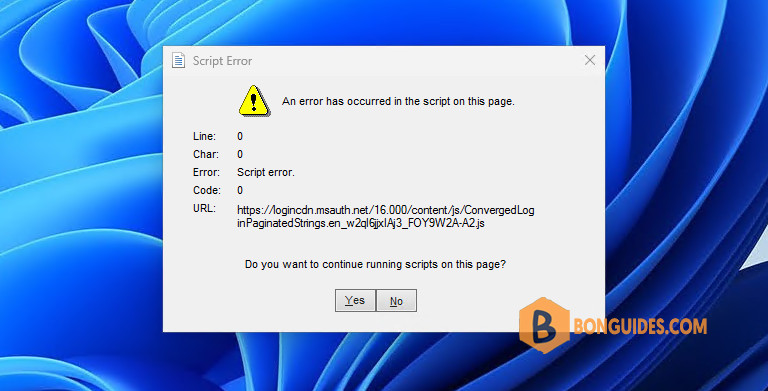
The reasons for this error can be due to the OneDrive app’s JavaScript or VBScript code, or ActiveX controls or Java programs on your network/computer are blocked, corrupted/outdated scripting engine, or incompatibility with older versions of Internet Explorer.
Reset Internet Explorer Settings
The OneDrive app on Windows uses the same internet connection settings as Internet Explorer on your computer, which means that any corrupted or incorrectly configured settings in IE will cause OneDrive to malfunction. Resetting your IE will make the script error go away.
In Windows 10, reset Internet Explorer settings can be done in the Internet Options in Control Panel (inetcpl.cpl). But in Windows 11, that options has been removed.
Note
Click on images (screenshots) to show them at full size in popup.
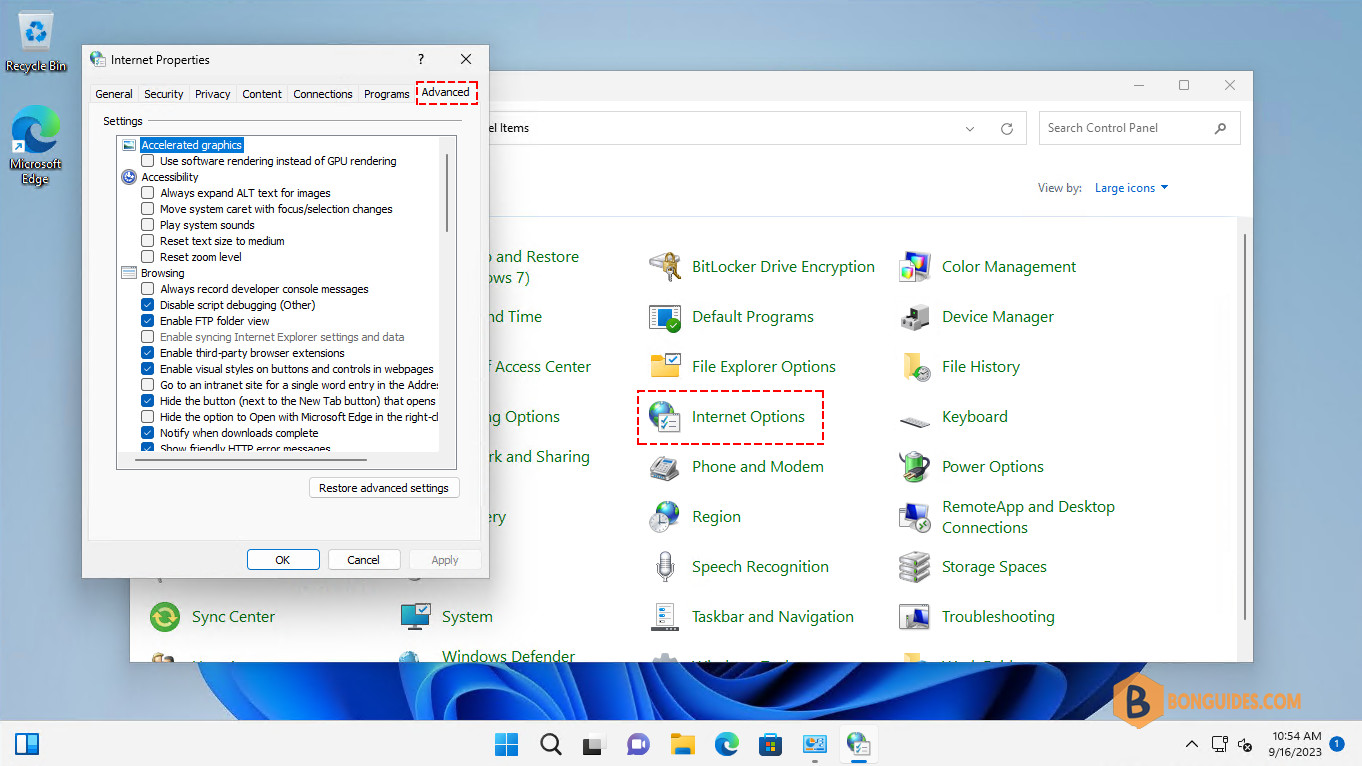
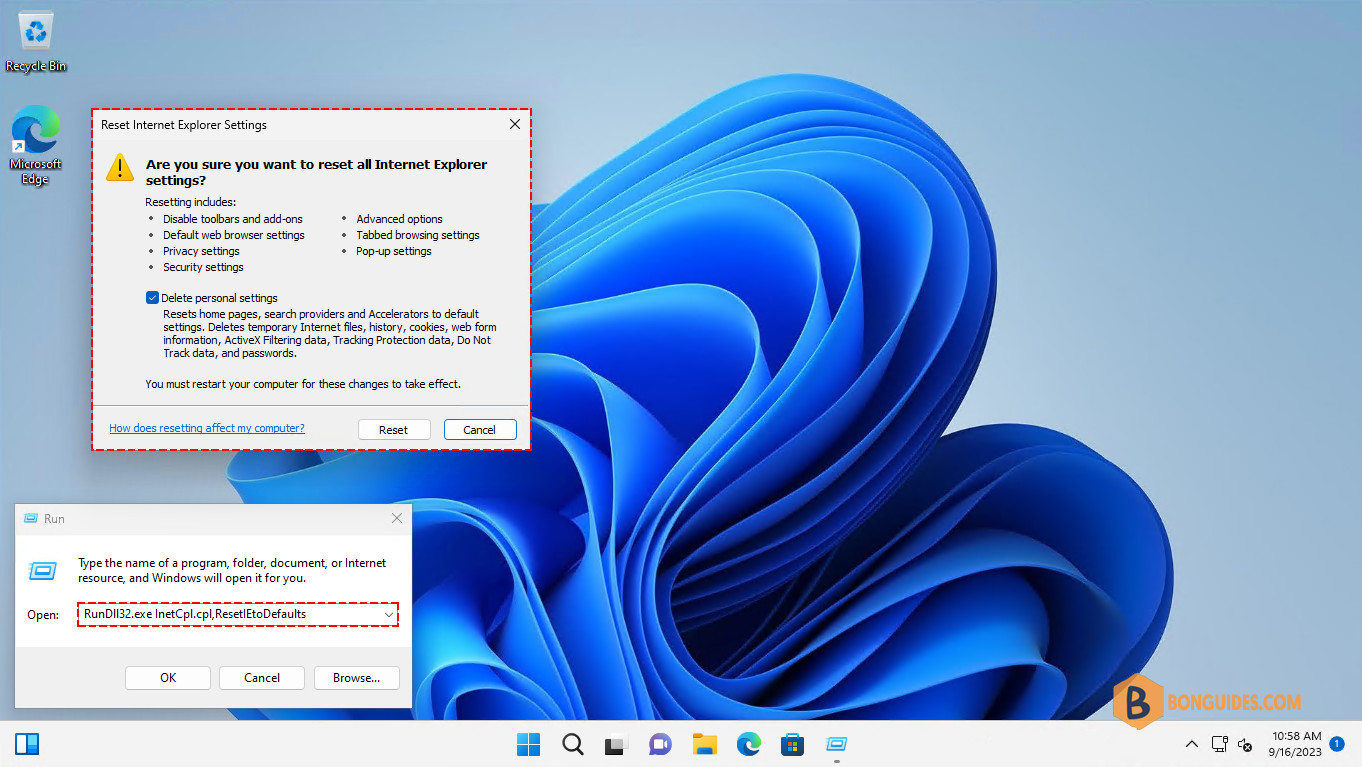
Microsoft has been removed that option from GUI in the recent releases of Windows 11. But you can access the option using command line. The below command can be run by the Run box (Windows + R) or run in any command prompt (CMD, PowerShell, Terminal).
RunDll32.exe InetCpl.cpl,ResetIEtoDefaultsAs you can see, now you can reset Internet Explorer settings as usual.
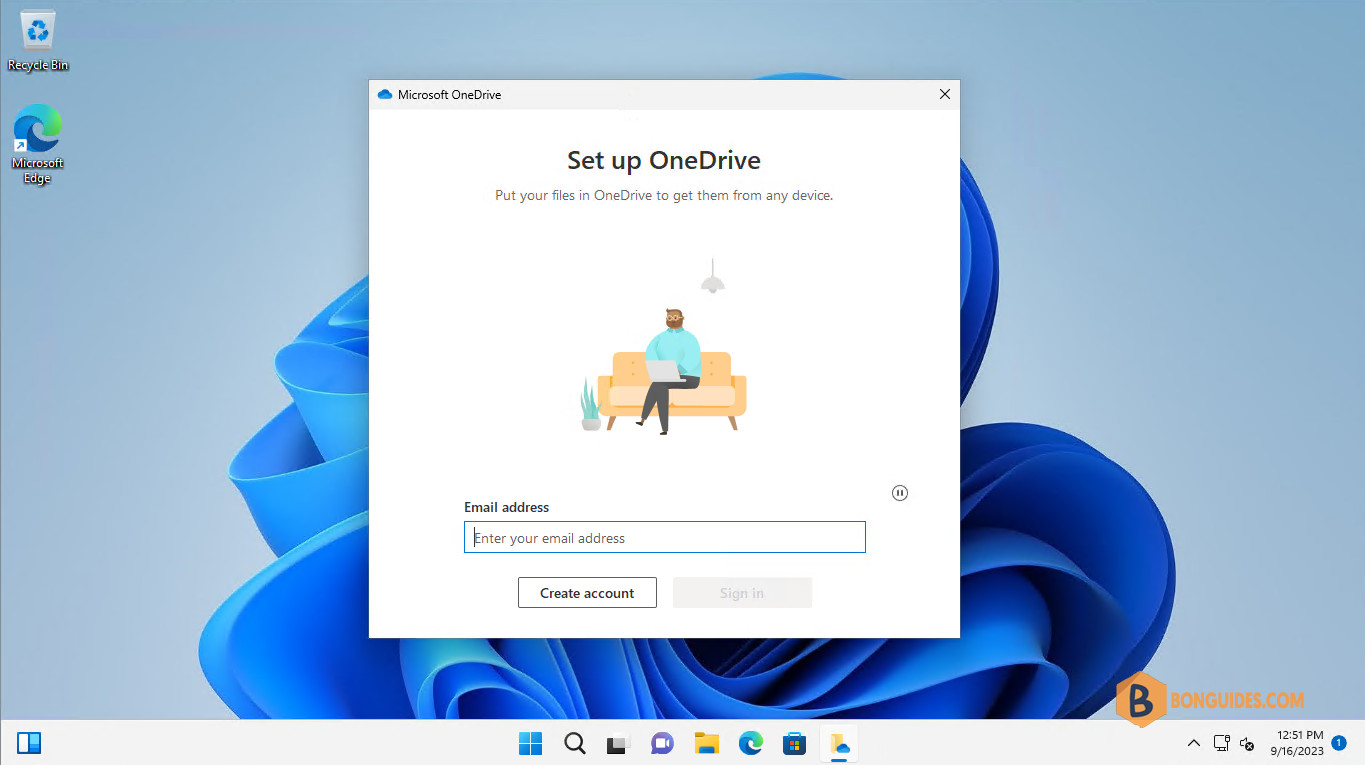
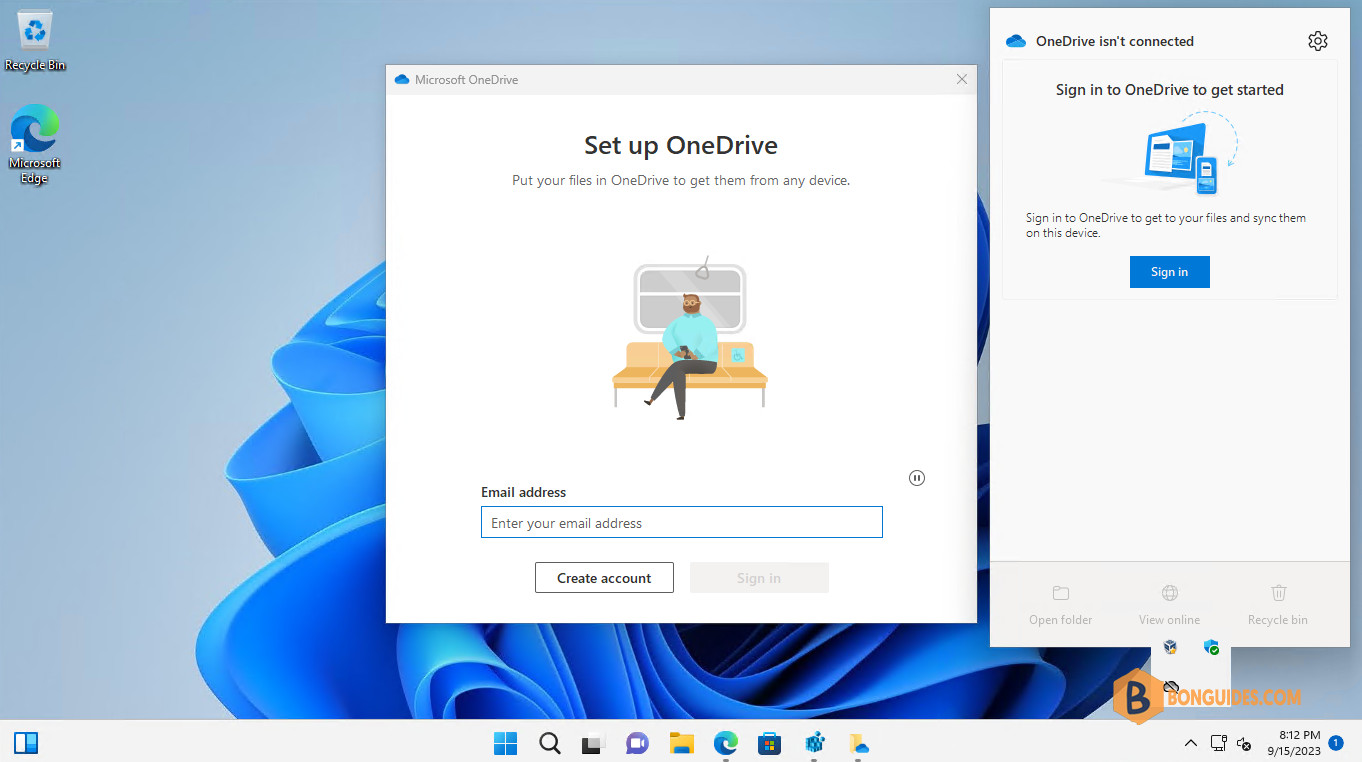
In our case, once the Internet Explorer Settings is reset. We can now open then sign in into OneDrive.
OneDrive White Box When Openning
In some cases, you would get the following error when opening the OneDrive app on Windows 11. A small white box is showing up when you click on the OneDrive icon instead of the login page.
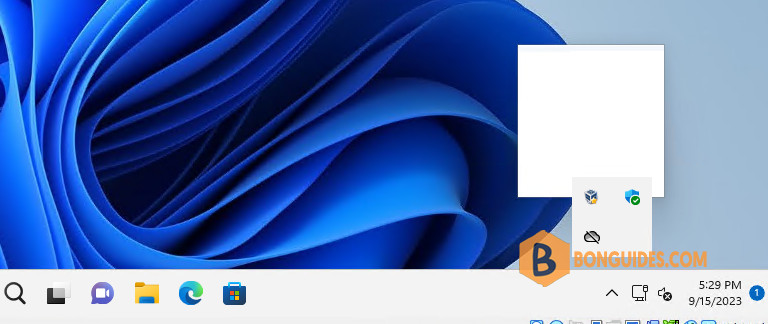
So, we thought we just reinstall OneDrive. But when trying to reinstall, we get the message: OneDriveSetup.exe The file or directory is damaged and unreadable (Screenshot below).
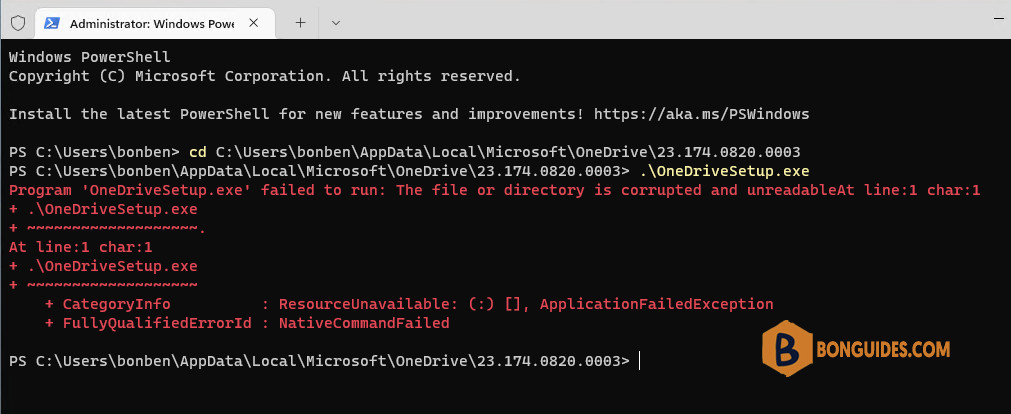
To fix the issue, you need to remove then reinstall the Microsoft OneDrive followed by below steps:
1️⃣ Right click on the Windows start icon then open Windows PowerShell (Terminal) as administrator.
2️⃣ Navigate to the SysWOW64 directory in the system drive using the below command:
cd C:\Windows\SysWOW64\3️⃣ Run the file OneDriveSetup.exe with the /uninstall switch to remove the OneDrive from your computer.
OneDriveSetup.exe /uninstall6️⃣ Wait a few seconds to the app gets removed. Once done, you’re ready for reinstalling OneDrive, using the command below to reinstall it:
OneDriveSetup.exe /install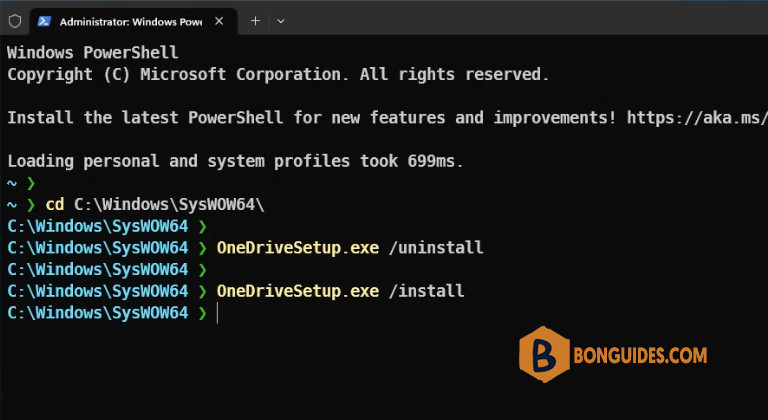
The installation starts automatically, and the app should be installed without any issue. You can go to the taskbar, click on the OneDrive icon then trying to sign in into it to verify it works.
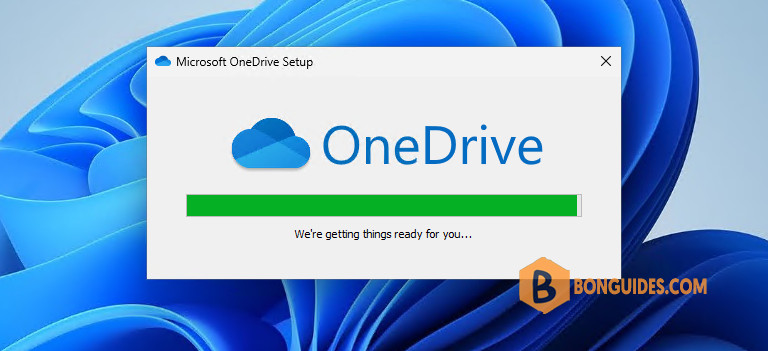
That’s it. We hope this post help you to solve the errors when opening OneDrive in Windows 11.


