Table of Contents
The issue
In some cases, when you trying to drag and drop a file from the Window host to the Ubuntu guest in VMware. As you can see, this feature is not working as expected.
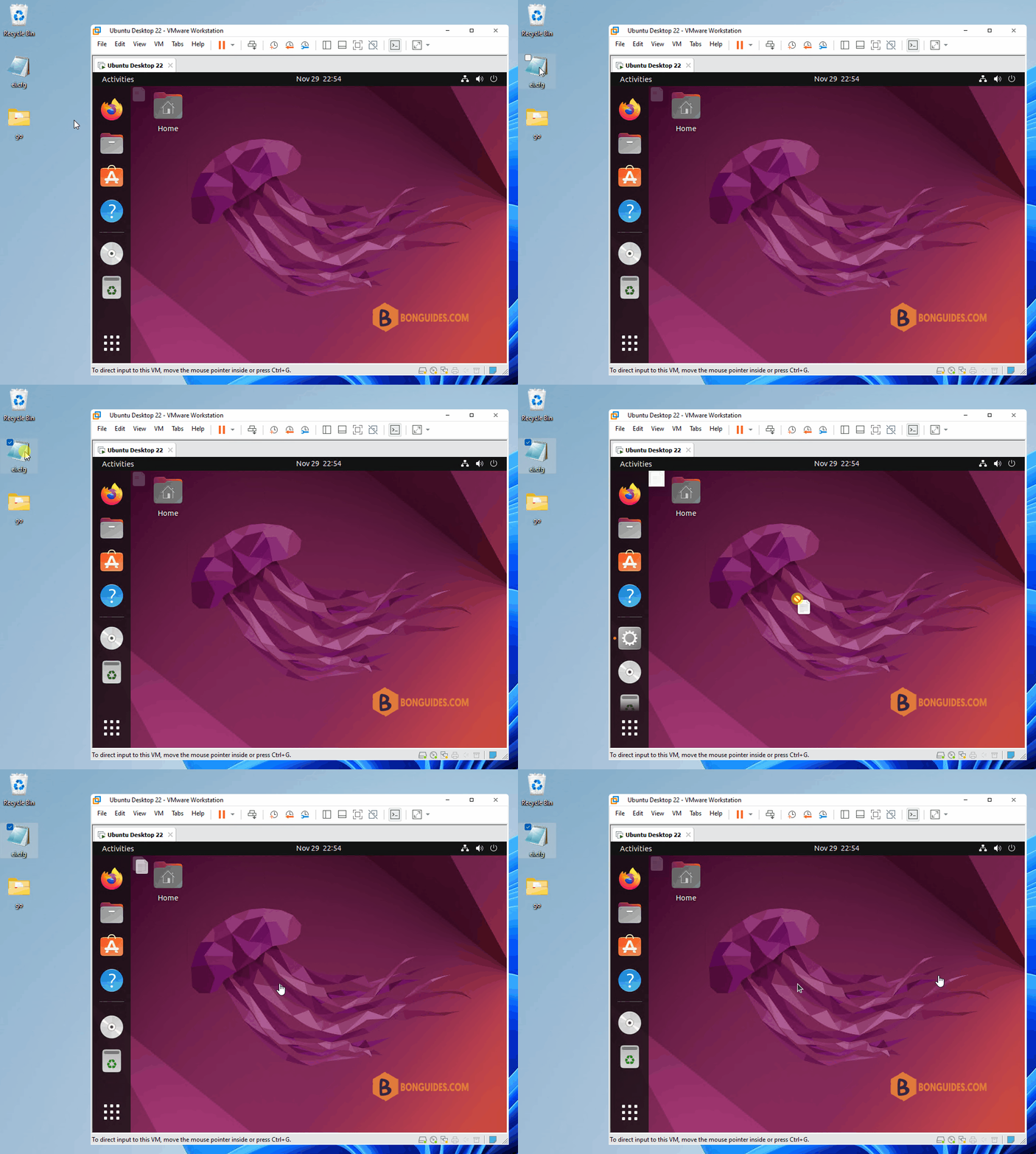
Even the Open VM Tools was installed in the Ubuntu guest.
bonben@ub222:~/Desktop$ apt list | grep open-vm

open-vm-tools-desktop/jammy-updates,jammy-security,now 2:11.3.5-1ubuntu4.1 amd64 [installed]
open-vm-tools-dev/jammy-updates,jammy-security 2:11.3.5-1ubuntu4.1 amd64
open-vm-tools-sdmp/jammy-updates,jammy-security 2:11.3.5-1ubuntu4.1 amd64
open-vm-tools/jammy-updates,jammy-security,now 2:11.3.5-1ubuntu4.1 amd64 [installed,automatic]
The root of the issue is Ubuntu 22.04 graphical desktop defaults to Wayland. There are some know issues with DnD on Wayland that we are tracking internally.
The solutions
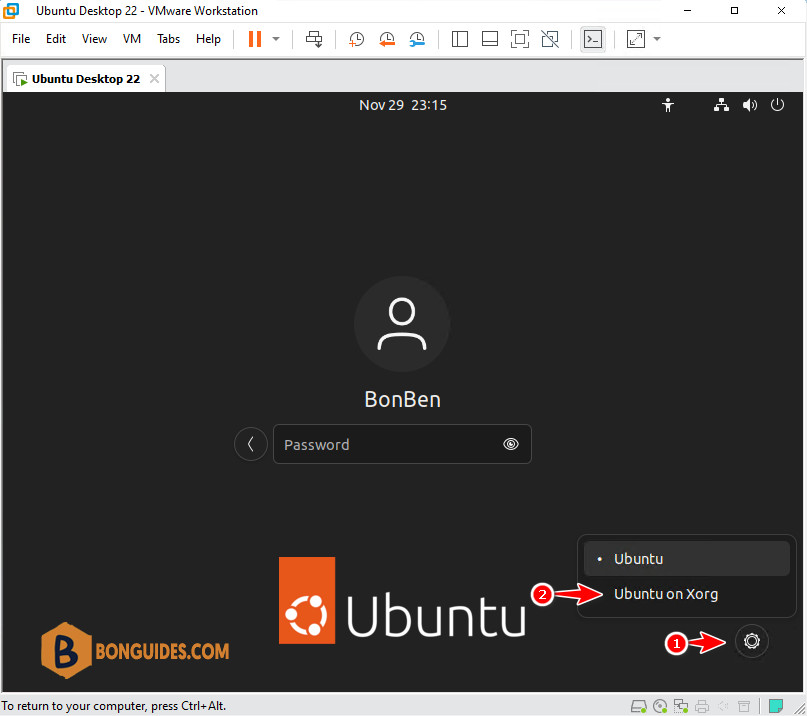
Until those issues are resolved, please try using the Ubuntu on Xorg option in the lower-right corner during login when asked for your password. Make the selection before entering you password.
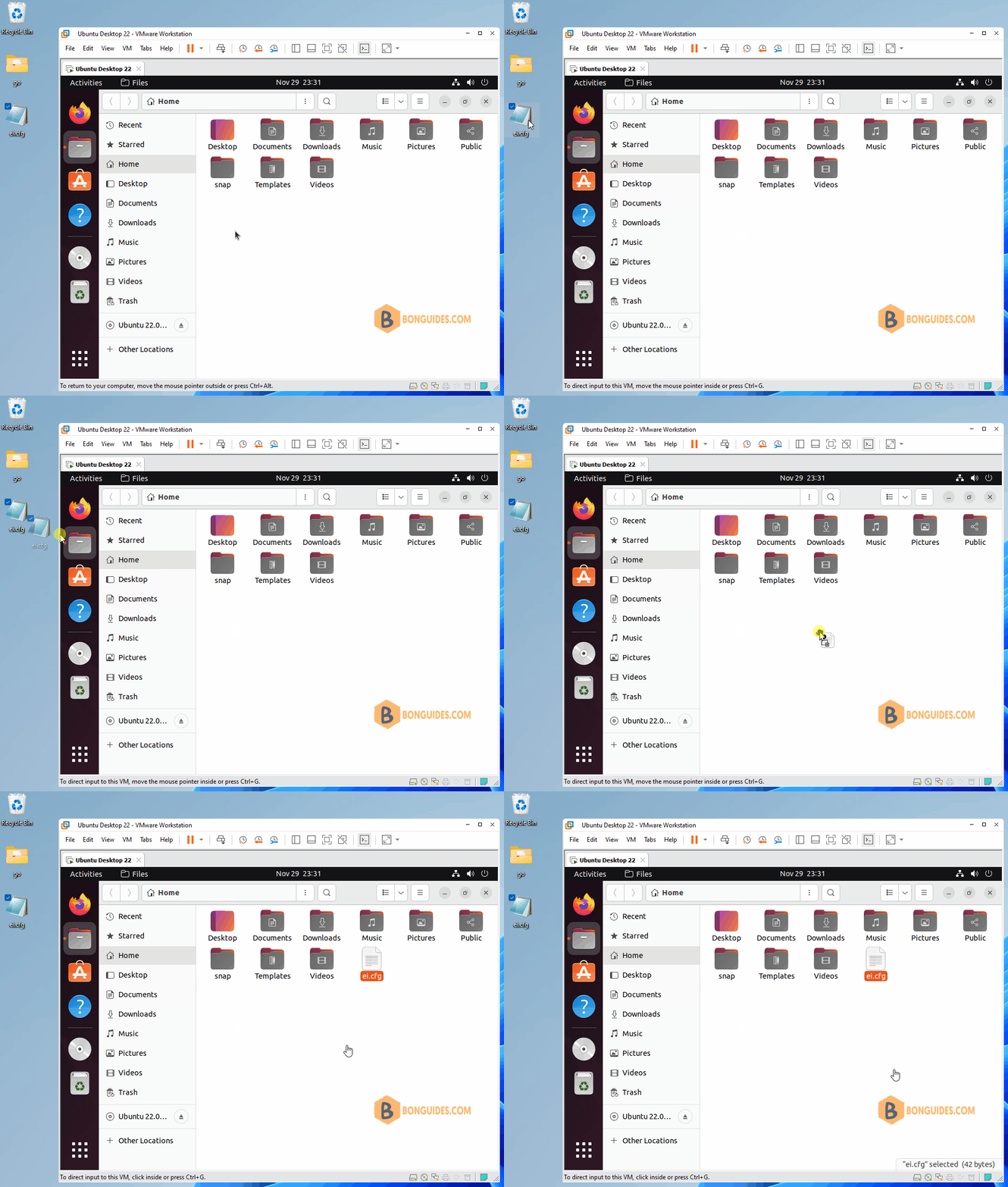
Once done, trying to drag a file from the host to the guest and it should work now.
Disable Wayland desktop
Alternatively, you can disable Wayland in the configs so that only X11 is used to enabled Autologin on this VM.
1. The default display manager for the GNOME desktop environment is GDM3. Let’s open Terminal then edit it:
sudo nano /etc/gdm3/custom.conf2. Within this file, look for the line that says #WaylandEnable=false. You can uncomment this line and set it to false to disable it.
Note
Tip: To save the file in nano editor, press > >
# GDM configuration storage
#
# See /usr/share/gdm/gdm.schemas for a list of available options.
...

# Uncomment the line below to force the login screen to use Xorg
WaylandEnable=false

# Enabling automatic login

...
3. After you have made the desired changes, save this file and exit it. You will need to restart GDM3 or reboot your Ubuntu 22.04 desktop for the changes to take effect.
sudo systemctl restart gdm3As you can see in the below screenshot, the default desktop environment is X11 and the option to switch between desktop was gone.