
Table of Contents
In this article, we will learn How to convert macOS Installer File to DMG (.app to .dmg). This process is useful to create a DMG file to create a macOS bootable USB drive.
Convert macOS Installer File to DMG
1. Create a new folder on your desktop.
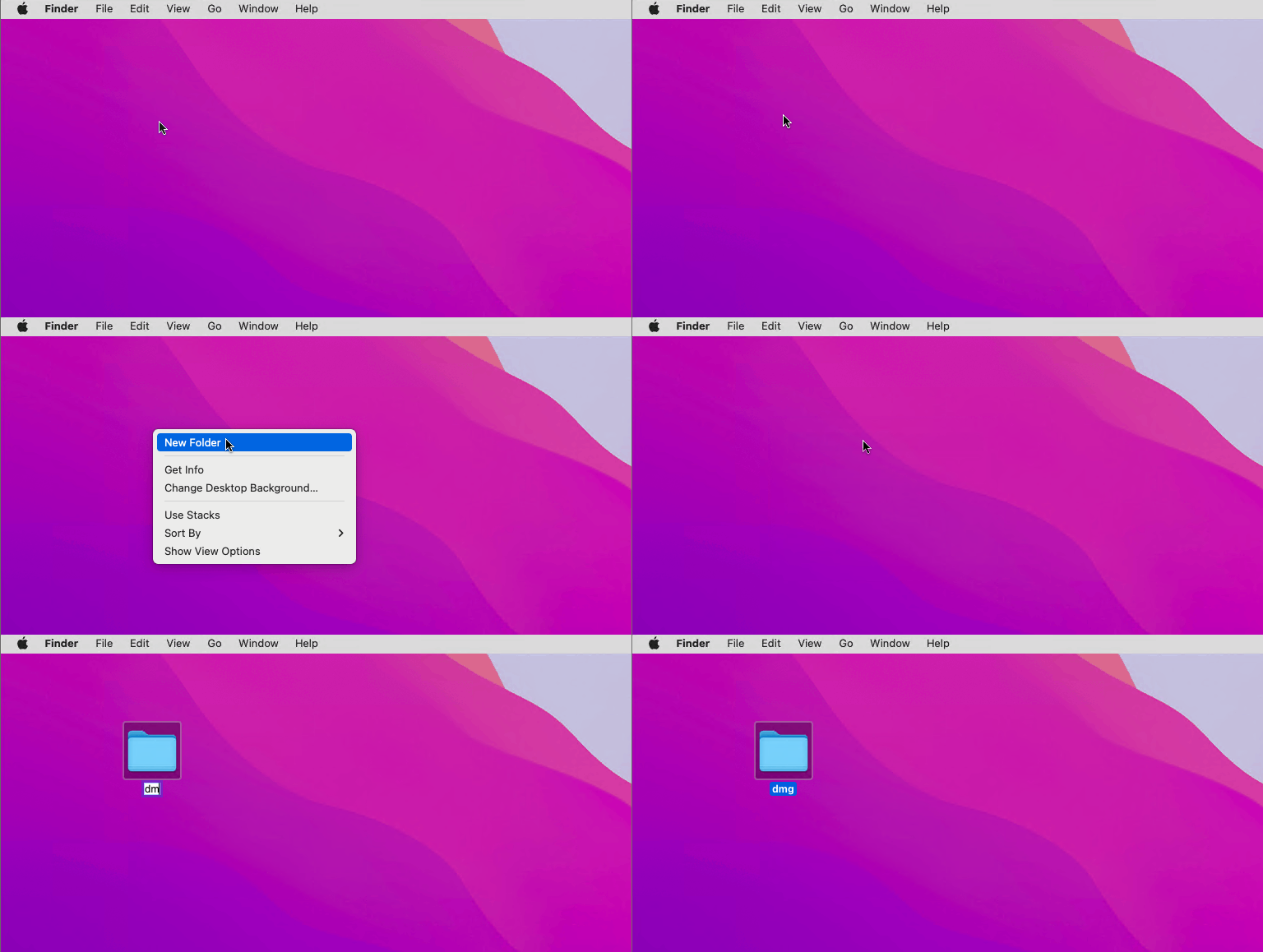
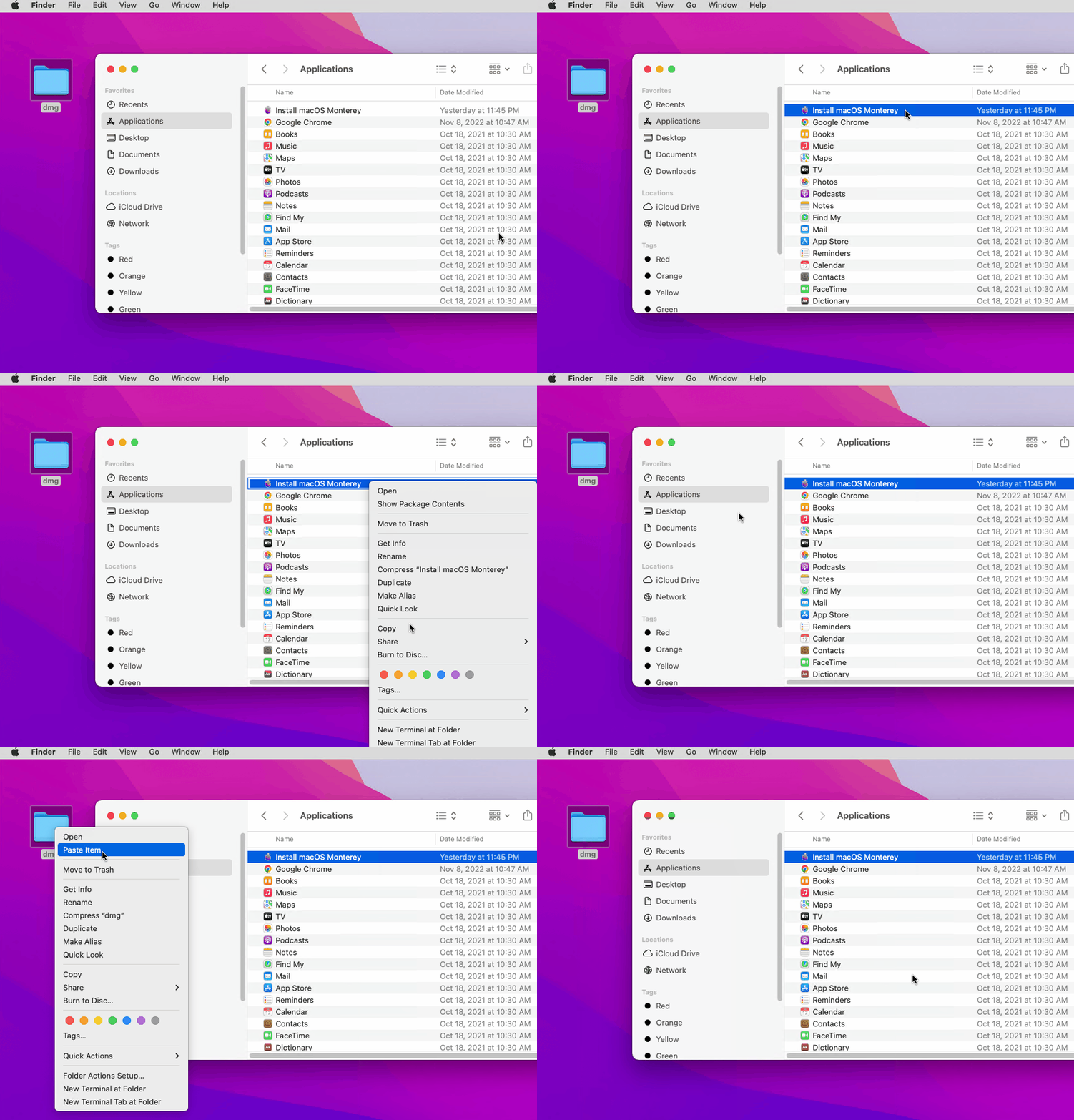
2. Copy your installer file from your Applications folder into the newly created folder on desktop.
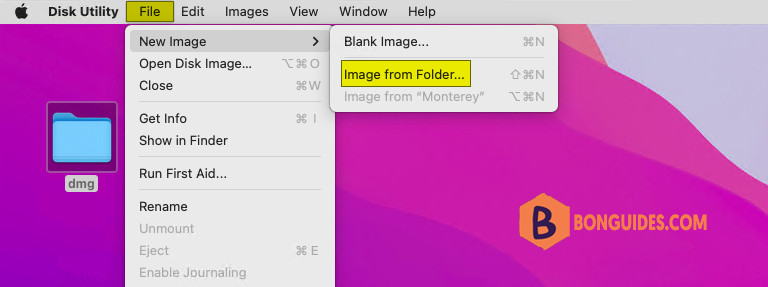
3. Open Disk Utility from Launchpad or Spotlight.
4. Go to Disk Utility > File > New Image > Image from Folder.
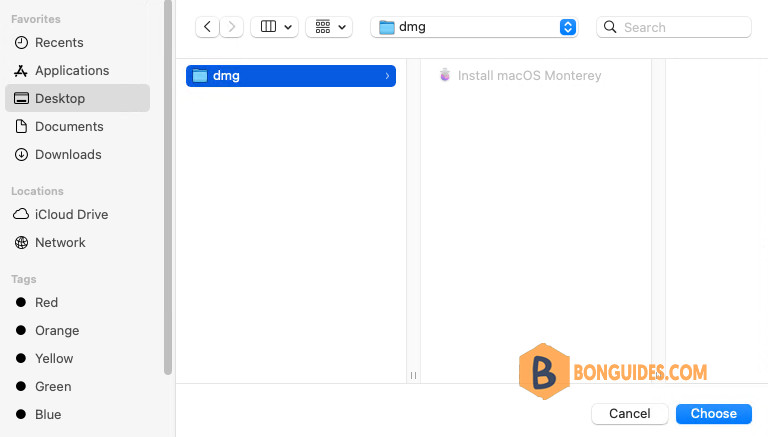
5. Now select the New Folder that we created on the desktop and click Choose.
6. Name your DMG file and click Save.
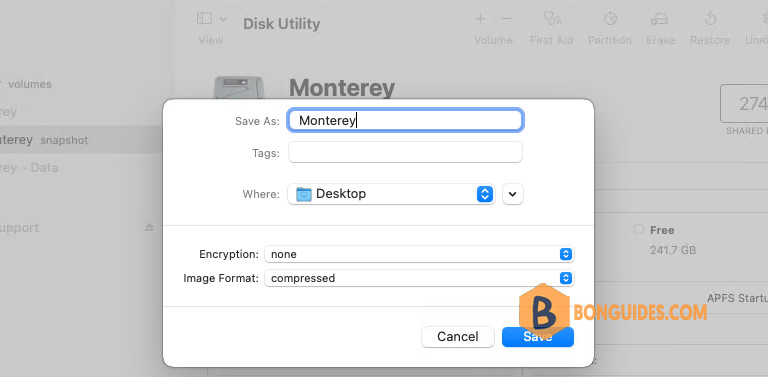
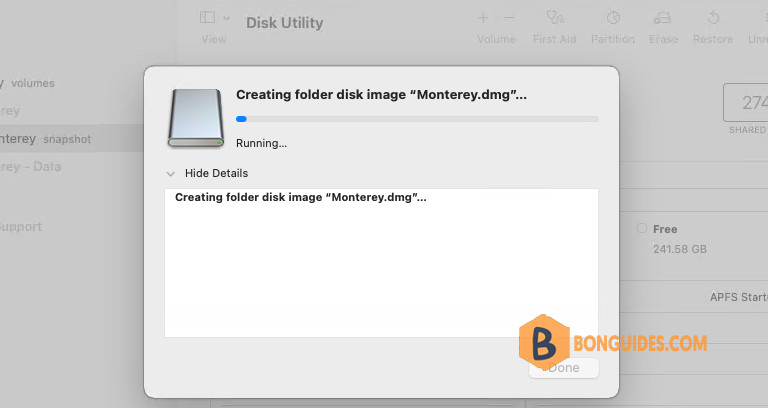
The process will take a few seconds and your newly created DMG file will be ready.
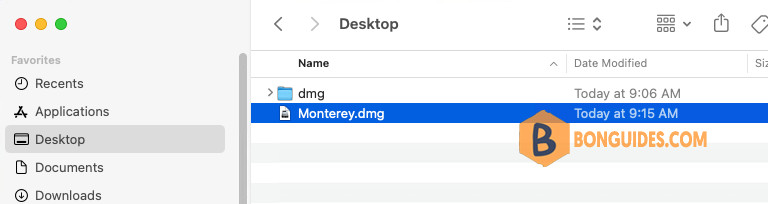
The file will be saved on your desktop. See the below snapshot for reference.


i need dmg file converter