
Table of Contents
According to Microsoft documentation TLS 1.2 is enabled by default on Windows editions. But in some cases, if it not enabled, you can check and enable it manually.
Method 1: Check TLS with PowerShell
As of April 2020, the PowerShell Gallery only supports connections using TLS 1.2 or later. For more information, see PowerShell Gallery TLS Support.
To check your current settings in the Microsoft .NET Framework, run the following command in Windows PowerShell:
[Net.ServicePointManager]::SecurityProtocol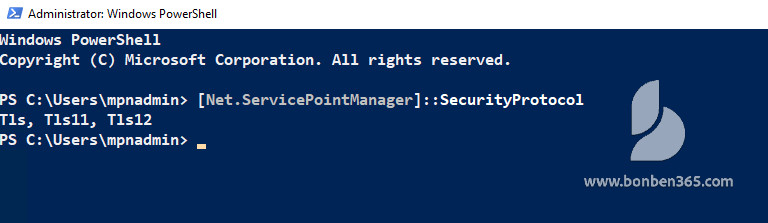
And to list the available protocols on your local workstation, and on your local Powershell profile you’re using.
Note
You might have different results whether you launched your PowerShell session using elevated prompt
[enum]::GetNames([System.Net.SecurityProtocolType])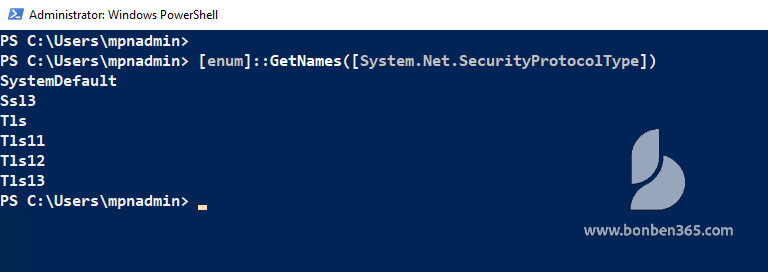
As described in the PowerShell Gallery TLS Support article, to temporarily change the security protocol to TLS 1.2 to install the PowerShellGet or ExchangeOnlineManagement modules, run the following command in Windows PowerShell before you install the module:
[Net.ServicePointManager]::SecurityProtocol = [Net.SecurityProtocolType]::Tls12 Method 2: Check if TLS 1.2 is enabled using Registry
Open Registry Editor then navigate to the following location:
- HKEY_LOCAL_MACHINESYSTEMCurrentControlSetControlSecurityProvidersSCHANNELProtocolsTLS 1.2Client
The DWORD DisabledByDefault is present and the value should be 0.
The DWORD Enabled is present and value should be 1.

TLS in Windows 7, Windows Server 2008 and Windows Server 2012
The DefaultSecureProtocols registry entry can be added in the following path:
HKEY_LOCAL_MACHINESOFTWAREMicrosoftWindowsCurrentVersionInternet SettingsWinHttp
On x64-based computers, DefaultSecureProtocols must also be added to the Wow6432Node path:
HKEY_LOCAL_MACHINESOFTWAREWow6432NodeMicrosoftWindowsCurrentVersionInternet SettingsWinHttp
The registry value is a DWORD bitmap. The value to use is determined by adding the values corresponding to the protocols desired.
| DefaultSecureProtocols Value | Protocol enabled |
|---|---|
| 0x00000008 | Enable SSL 2.0 by default |
| 0x00000020 | Enable SSL 3.0 by default |
| 0x00000080 | Enable TLS 1.0 by default |
| 0x00000200 | Enable TLS 1.1 by default |
| 0x00000800 | Enable TLS 1.2 by default |
Enable TLS 1.1 and 1.2 on Windows 7
Create the necessary subkeys for TLS 1.1 and 1.2; create the DisabledByDefault DWORD values and set it to 0 in the following locations:
For TLS 1.1
Registry location: HKEY_LOCAL_MACHINESYSTEMCurrentControlSetControlSecurityProvidersSCHANNELProtocolsTLS 1.1Client
DWORD name: DisabledByDefault
DWORD value: 0
For TLS 1.2
Registry location: HKEY_LOCAL_MACHINESYSTEMCurrentControlSetControlSecurityProvidersSCHANNELProtocolsTLS 1.2Client
DWORD name: DisabledByDefault
DWORD value: 0
Or you can add reg values using Windows Command Prompt:
reg add "HKLM\SYSTEM\CurrentControlSet\Control\SecurityProviders\SCHANNEL\Protocols\TLS 1.1\Client" /t REG_DWORD /f /v "DisabledByDefault" /d "0"reg add "HKLM\SYSTEM\CurrentControlSet\Control\SecurityProviders\SCHANNEL\Protocols\TLS 1.2\Client" /t REG_DWORD /f /v "DisabledByDefault" /d "0"Enable TLS 1.2 Manually for Windows 10, 11
Run below command to enable TLS 1.2 using Windows PowerShell (admin) or Windows Command Prompt (admin).
reg add "HKLM\SYSTEM\CurrentControlSet\Control\SecurityProviders\SCHANNEL\Protocols\TLS 1.2\Client" /t REG_DWORD /f /v "DisabledByDefault" /d "0"reg add "HKLM\SYSTEM\CurrentControlSet\Control\SecurityProviders\SCHANNEL\Protocols\TLS 1.2\Client" /t REG_DWORD /f /v "Enabled" /d "1"If the registry key is not present, please add the registry key as mentioned in the Microsoft document.


