Table of Contents
Although you can always change the screen resolution using the Display settings, Windows 10/11 doesn’t include a command-line equivalent feature for adjusting the screen resolution using Command Prompt or Terminal.
Such a feature would come in handy to quickly change the screen resolution for certain apps and games that work best at specific resolutions.
However, if you must change the monitor’s resolution with commands, you can use QRes by Anders Kjersem. This small tool doesn’t require installation and allows you to adjust the display pixel resolution through Command Prompt or batch file.
This post shows you the steps to select a different display resolution for your monitor on Windows 10/11 using commands.
Note
This is a third-party application, and it’s offered without guarantee. Use it at your own risk. You have been warned.
Change screen resolution using Command Prompt
To change screen resolution with commands on Windows 11, use these steps:
1. Download QRes from website. Or you can download it from OneDrive:
2. Extract downloaded file to a folder on your computer.
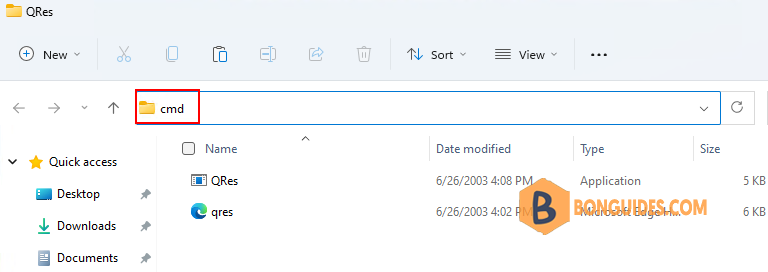
3. Type CMD and press in the folder address bar to open Command Prompt in current location.
4. Type the following command to change the screen resolution and press Enter:
Note
In the command, make sure to change the path for the QRes.exe file, and enter a supported width (x) and height (y) pixel resolution. For example, 1366 x 768, 1440 x 900, 1680 x 1050, 1920 x 1080, 2560 x 1440, etc.
QRes.exe /x:1366 /y:768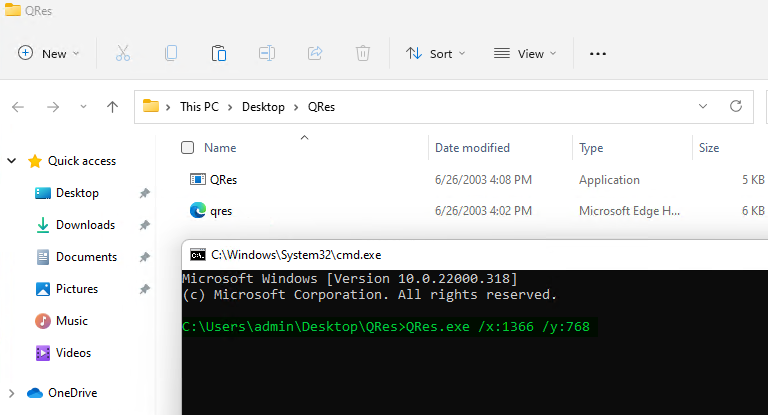
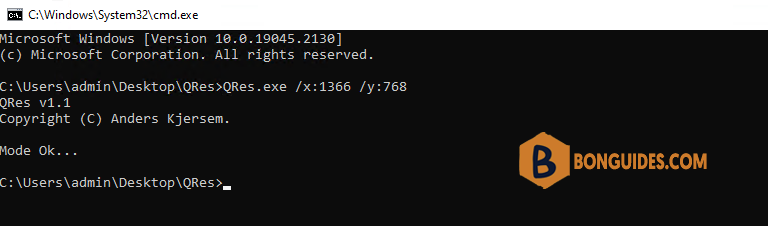
Once you complete the steps, the screen will change to the specified resolution.
Change screen resolution using batch script
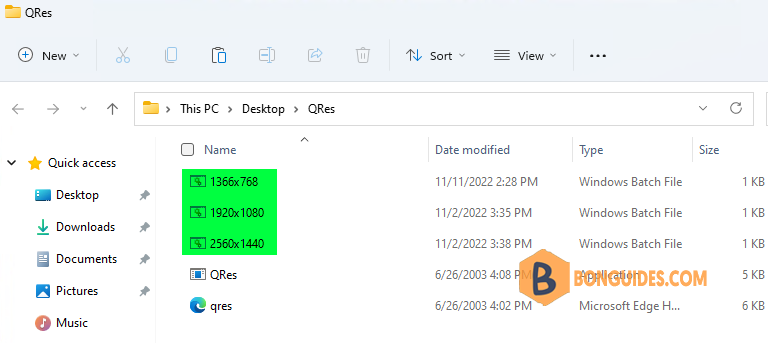
Alternatively, you can use QRes to create a file script that you can double-click to change the display resolution automatically.
1. Create a new text document in the same folder with the file QRes.exe then copy and paste the following command:
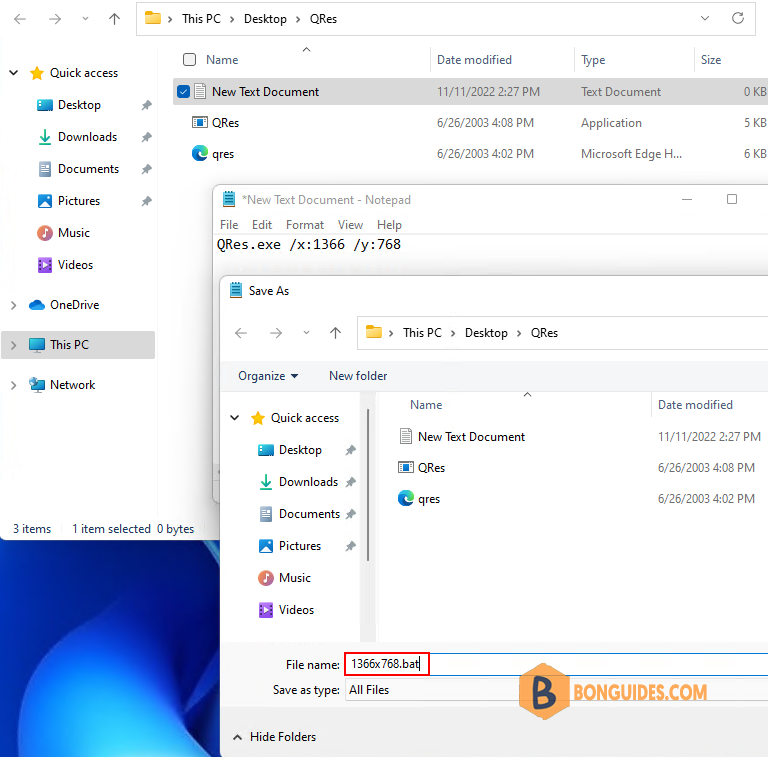
QRes.exe /x:1366 /y:768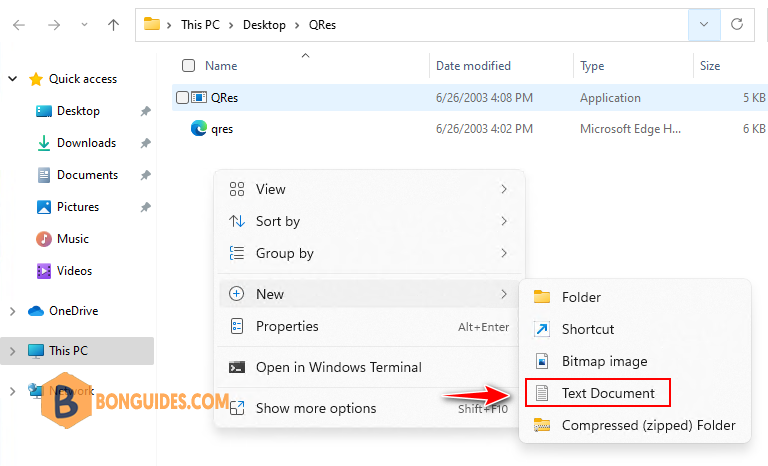
2. Click the File menu. Select the Save As option. Save the batch file with a descriptive name and a file extension.
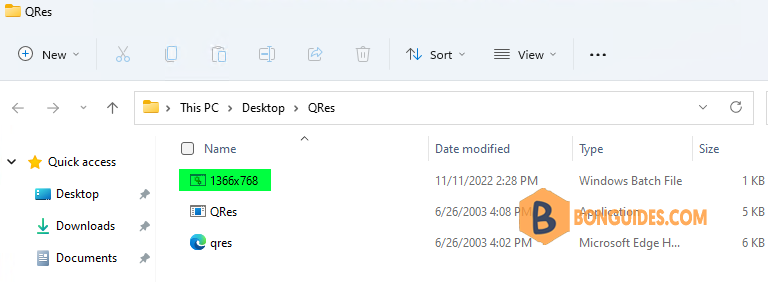
3. After completing the steps, double-click the batch file, and the screen resolution should change automatically without needing extra steps.
If you need to change the display resolution constantly, creating another batch file is recommended to restore the original resolution. You can always find out about all the solutions supported by your monitor on Settings > System > Display.