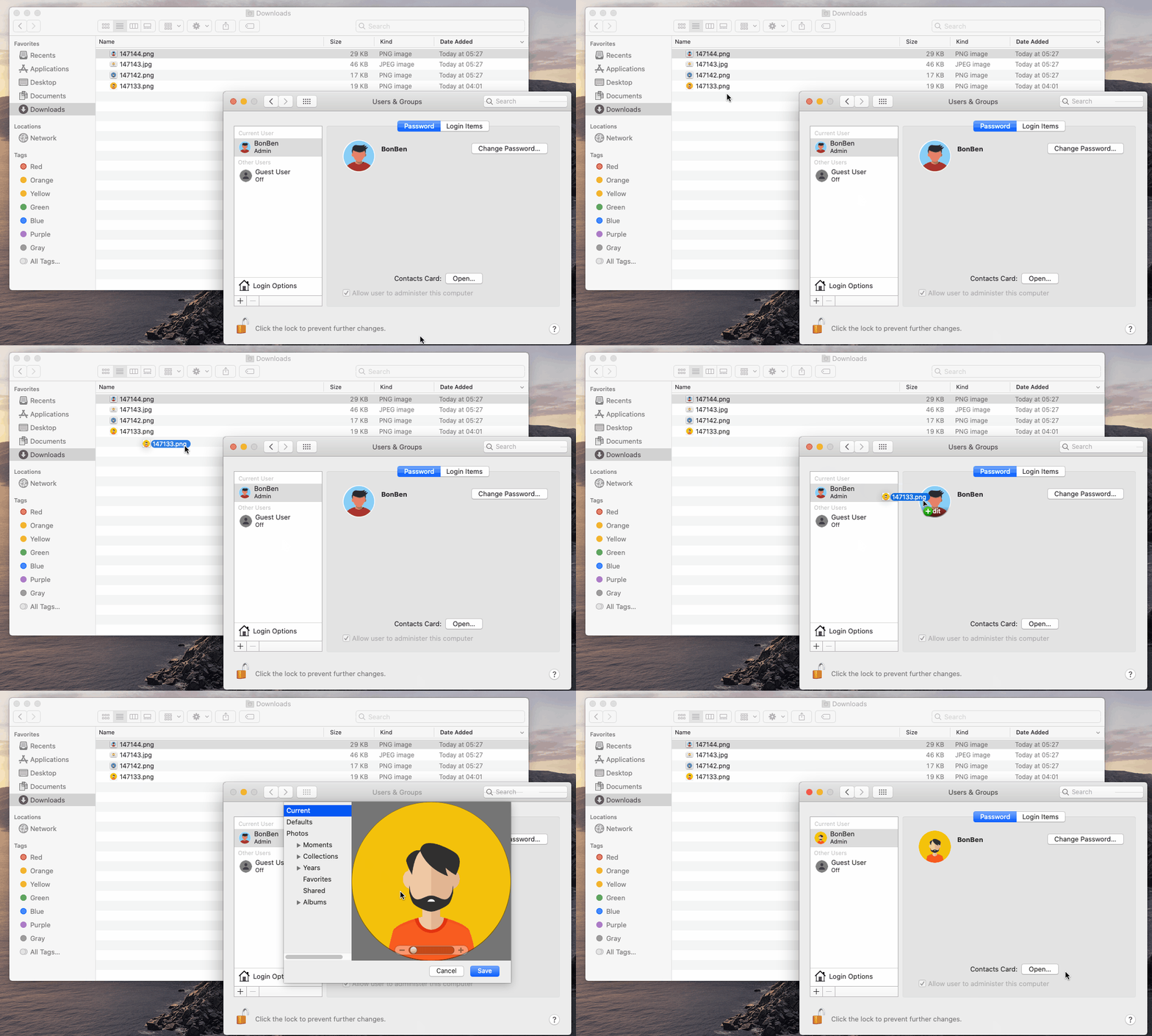
You can change the picture that appears next to your user name or another user’s name in the login window on your Mac. You can choose a photo from your photo library, take a new photo using the camera on your Mac, choose a Memoji or emoji, use initials in a monogram, and more.
Note
You can’t select an account for another user that’s currently logged in (indicated by a checkmark on the user’s picture). The user must log in and change their picture or log out so you can change it.
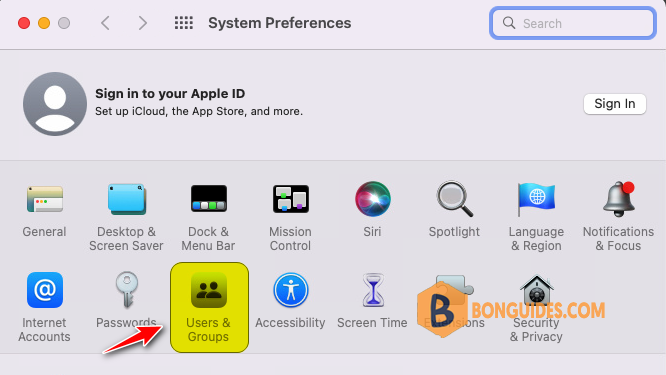
1. On your Mac, choose Apple menu in the top-left corner of the screen and select System Preferences.

2. Then click Users & Groups.
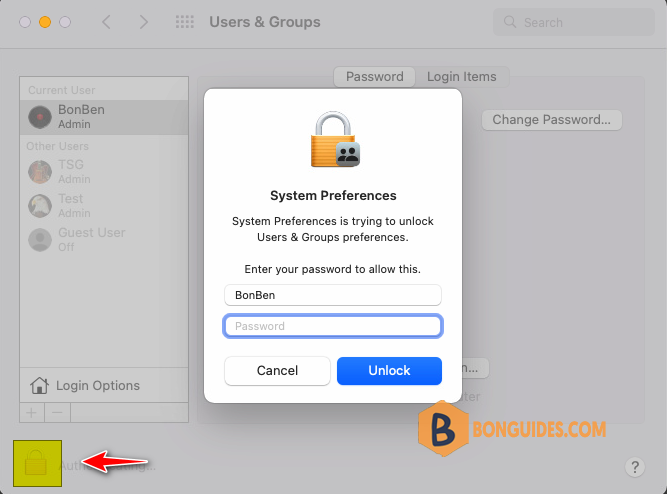
3. Click on the lock icon 🔒, located in the bottom-left corner of the window. Then Enter your Mac’s password in the pop-up window to allow you to make changes to your Mac.
4. Select your account on the left side then click on the user picture on the right.
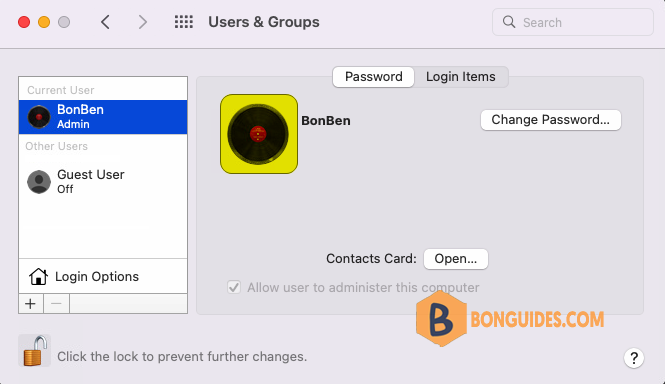
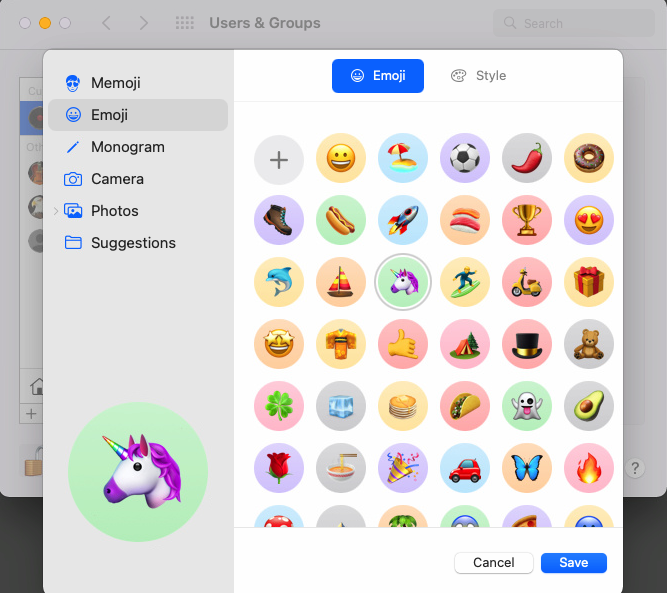
5. Now, you have many options to change your account picture such as Memoji, Emoji, Monogram, Camera or Photos.
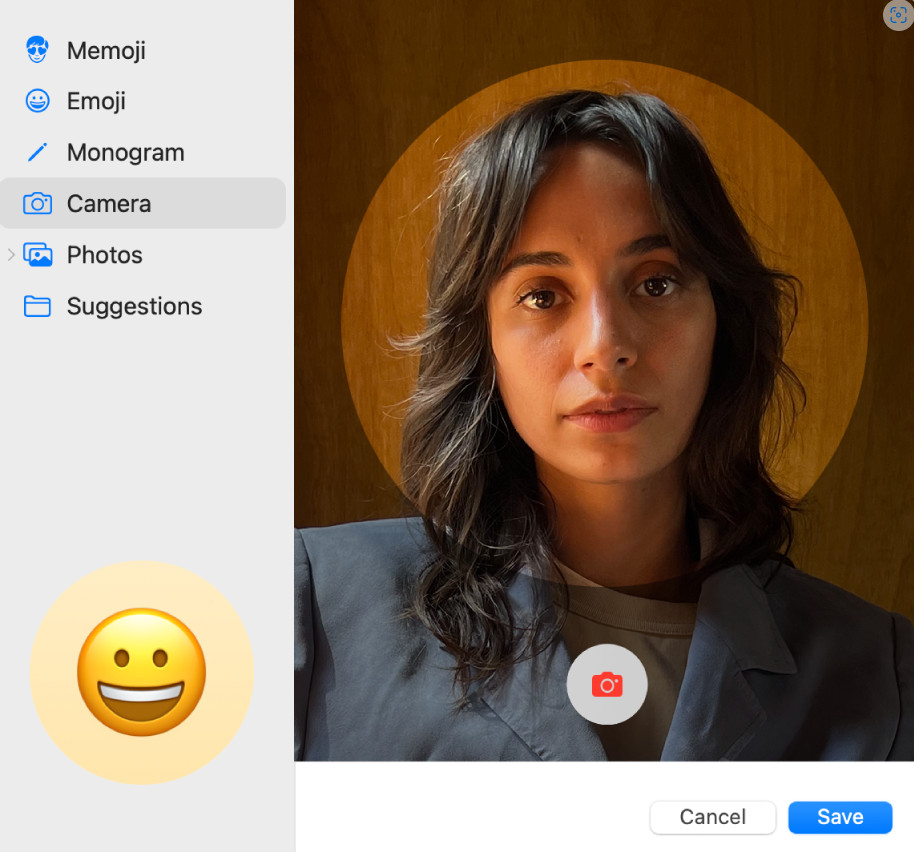
You can take a picture using your Mac camera: Click Camera. Set up your shot, then click the Camera button. You can retake the photo as many times as you need to.
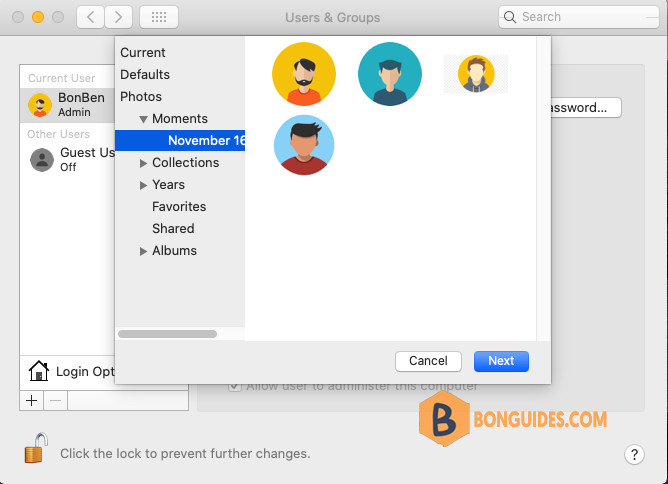
You can select a photo from your Photos library: Click Photos. To see photos from a specific album, click the arrow next to Photos in the sidebar, click the album you want, then select a photo.
Note
Tip: To quickly replace the current Apple ID picture with an image on your Mac, just drag the image from the Finder onto the current picture.