
Table of Contents
Full Screen Resolution with No Guest Additions
In some cases, Install Virtual Box Guest Additions can be a bit of a pain to set up. Our current PC setup for some reason wouldn’t show a VM in the full resolution.
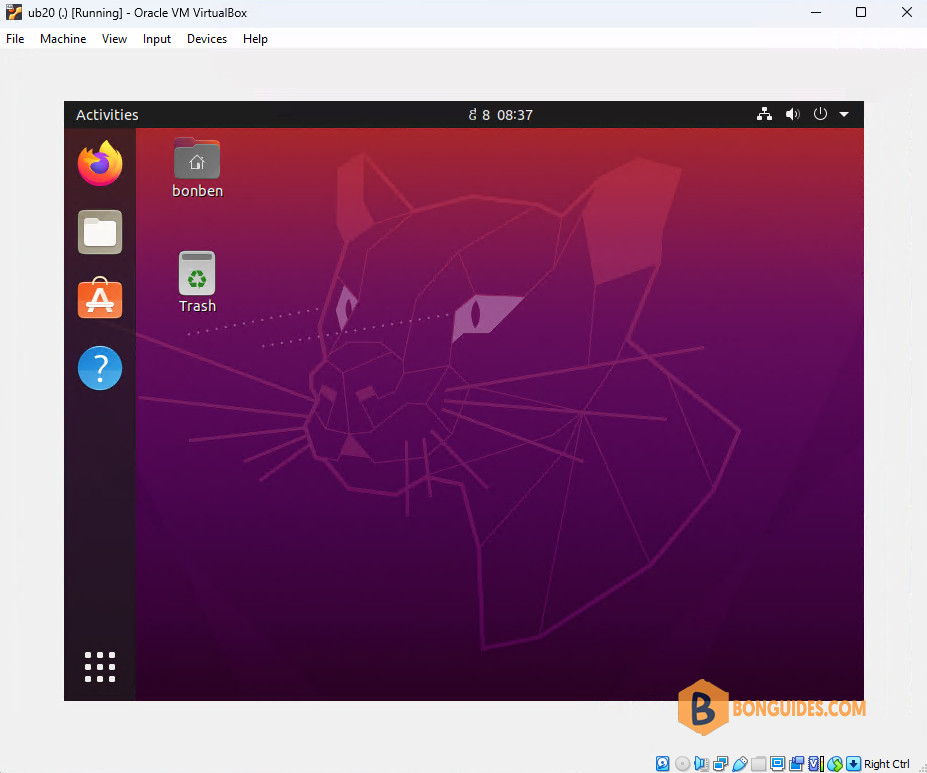
There’s a couple of options we’ve never had to configure before but once we did, we got a full screen resolution without having to mess around with installing Guest Additions.
1️⃣ Turn off the virtual machine.
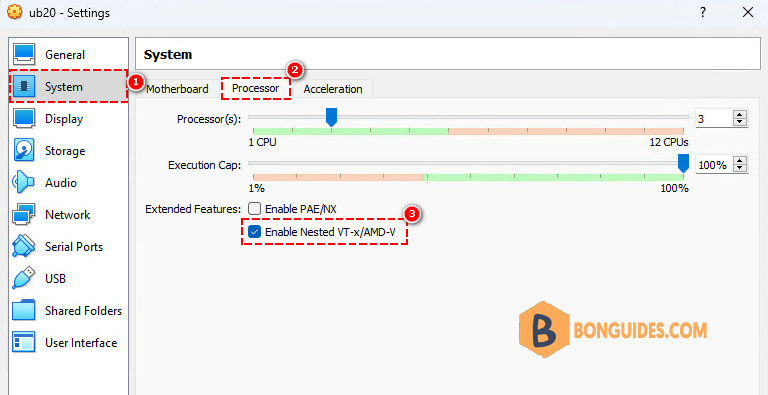
2️⃣ Edit virtual machine settings. On the settings page navigate to System | Processor then Select the checkbox to Enable Nested VT-x/AMD-V.
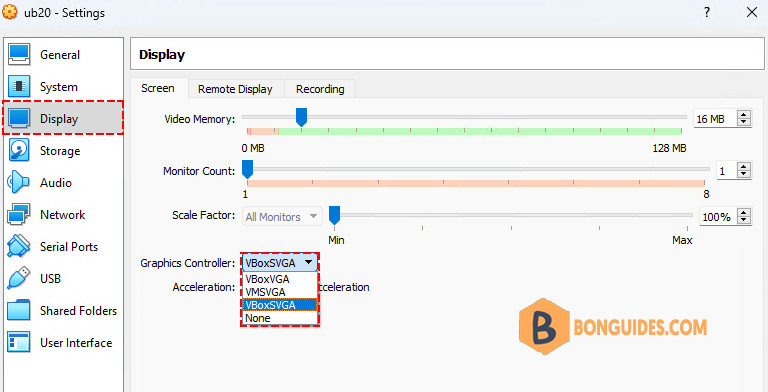
3️⃣ Next, select the Display section then change the Graphics Controller from VMSVGA to VBoxSVGA. Click OK to save the changes then start the virtual machine.
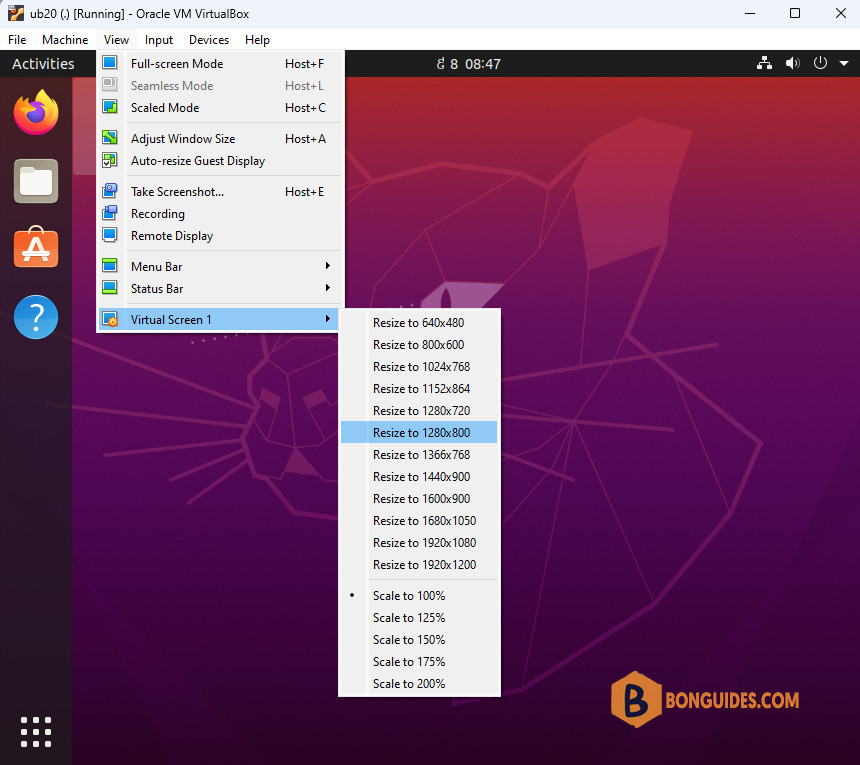
With these setting enabled there’s no need to install the Guest Additions software. As you can see in the below screenshot, we can change the virtual screen to any resolutions as we need, even full screen mode.
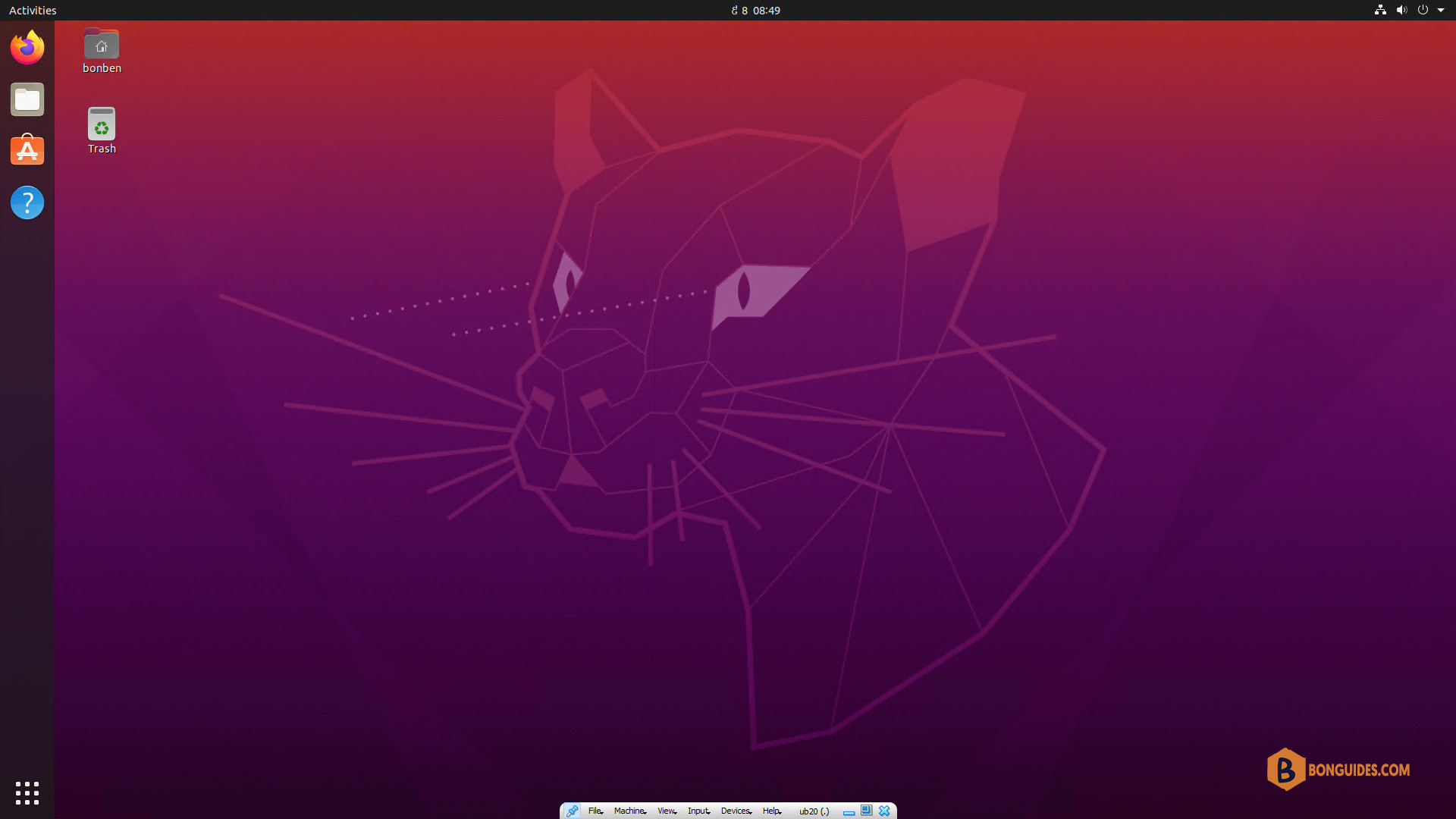
Below is the virtual machine in the full screen mode. In this mode, you can see a small toolbar at the bottom of the screen. (Click on the image to view in the full size).
On Windows and macOS you may need to enable the options through the CLI.
Conclusion
With a few simple steps above, we can enable the full screen mode on a Ubuntu VM on VirtualBox. But keep in mind, without the VirtualBox Guest Additions, you cannot copy/paste or drag/drop or enable shared folder between the host and the virtual machine.


