Table of Contents
Enhanced Mode Error The Requested Session Access is Denied
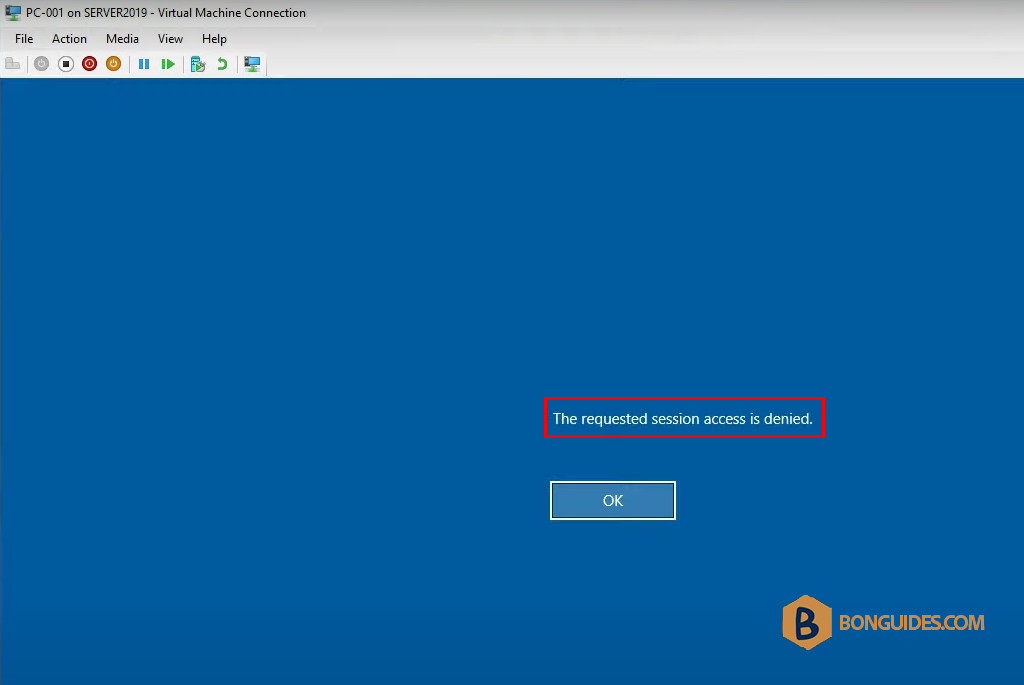
In some cases, you get the following error when trying to connect to a Hyper-V VM using a domain account with the Enhanced Mode.
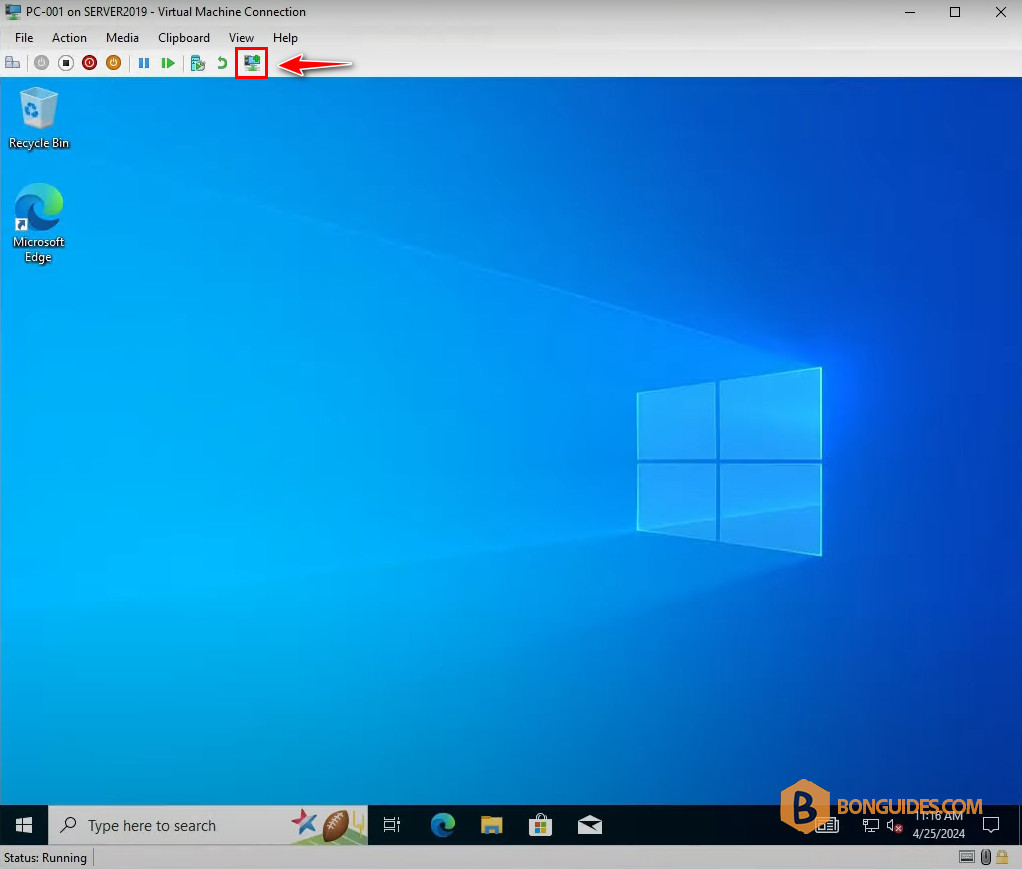
Using the same account in the Basic Mode. The user can sign in without any problem.
To fix it, you need to add the user to the Remote Management Users group in the VM.
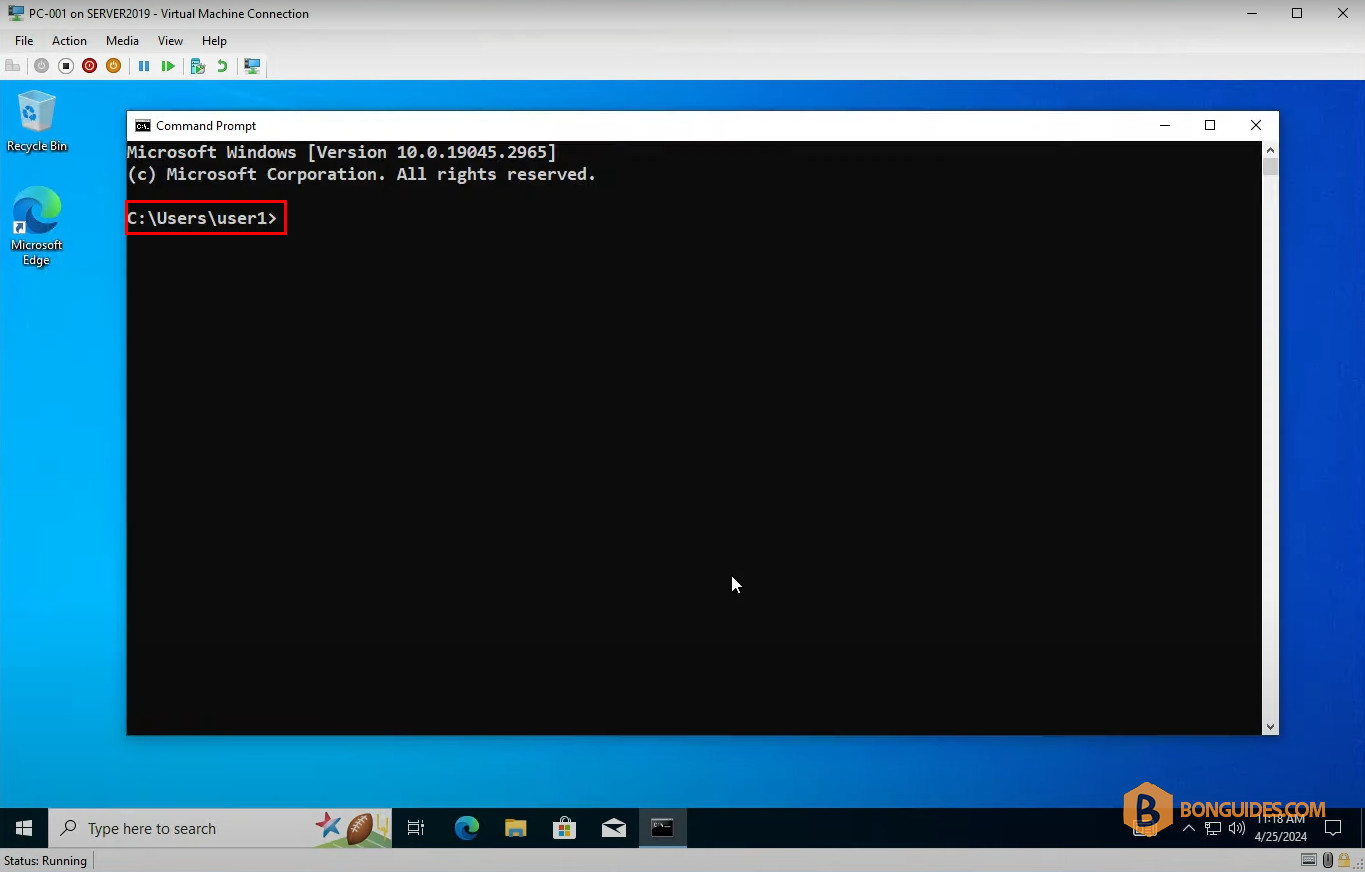
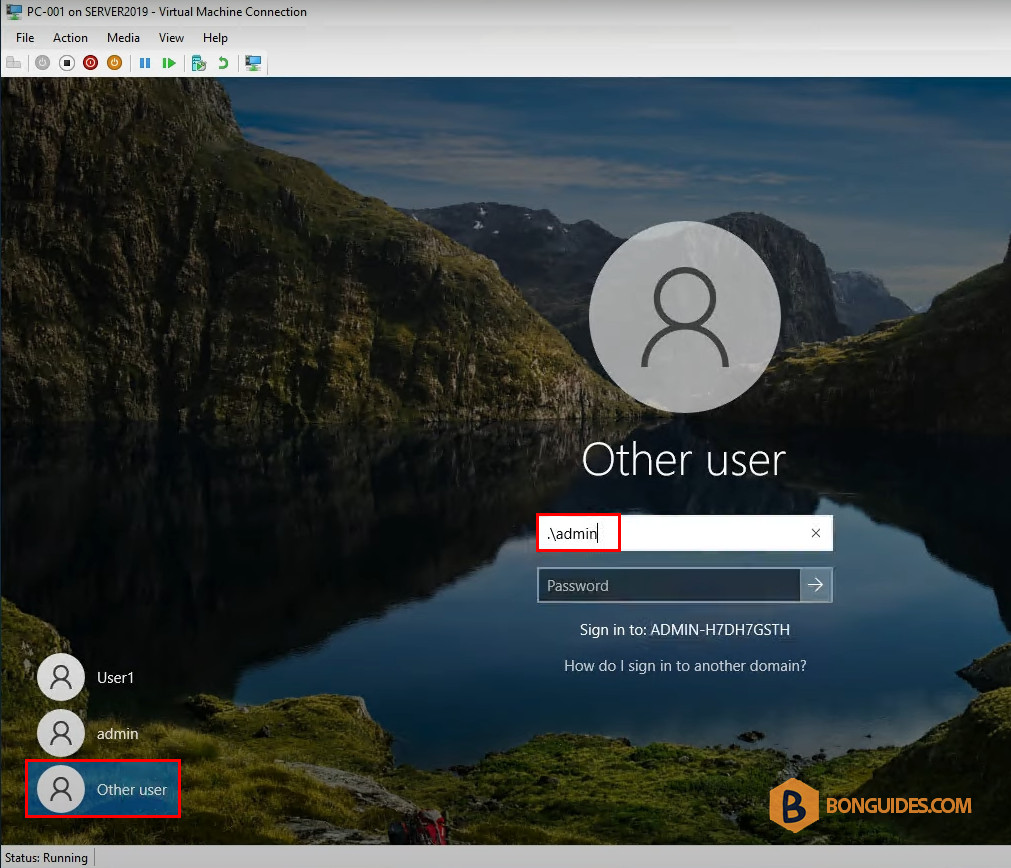
1. Sign out then sign back in using the local admin account or domain admin account in the Basic mode.
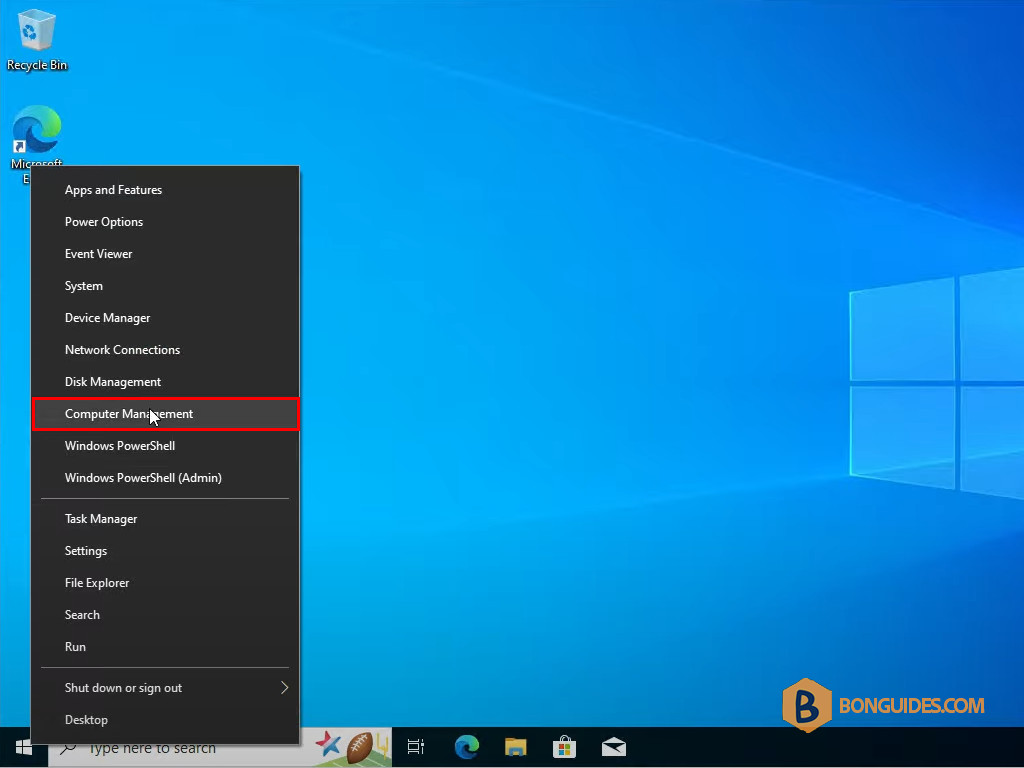
2. Right click on the Windows Start icon then open the Computer Management console.
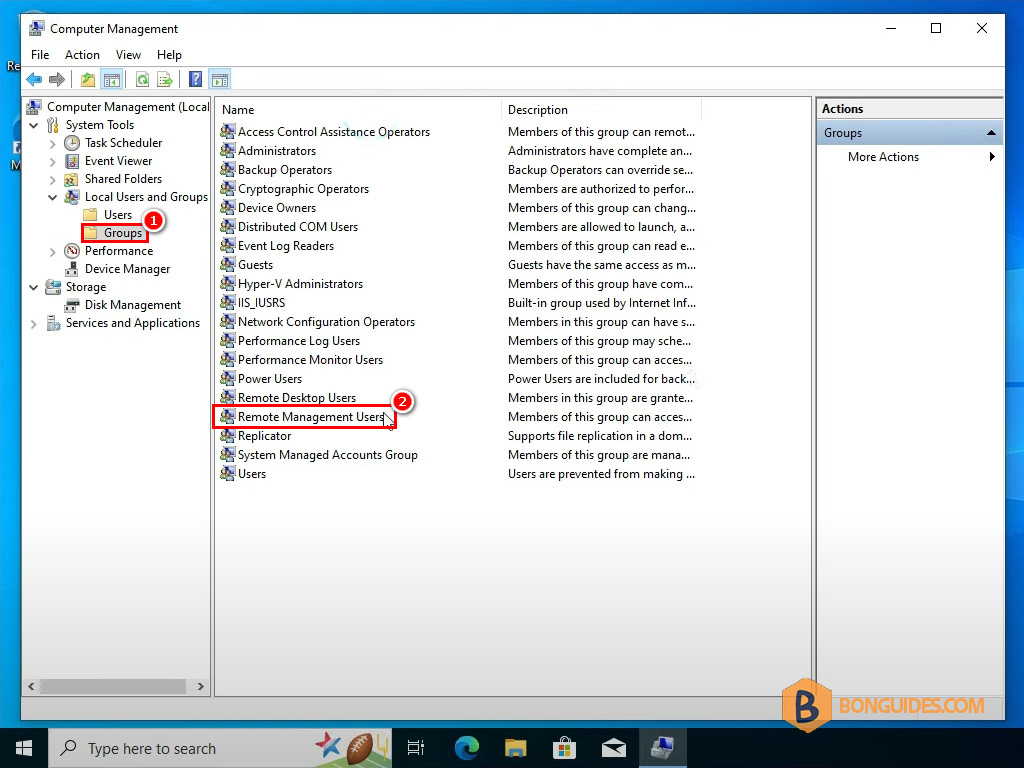
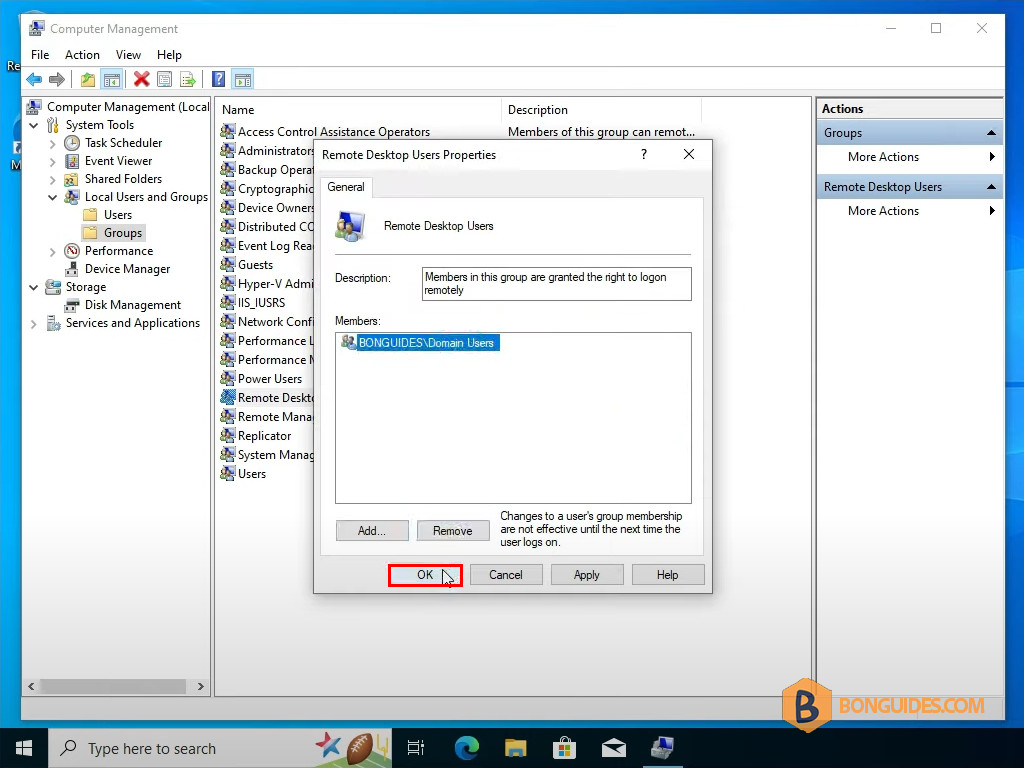
3. In the Computer Management console → Expand the Local Users and Groups → Select Group option → On the right panel, double-click on the Remote Management Users group.
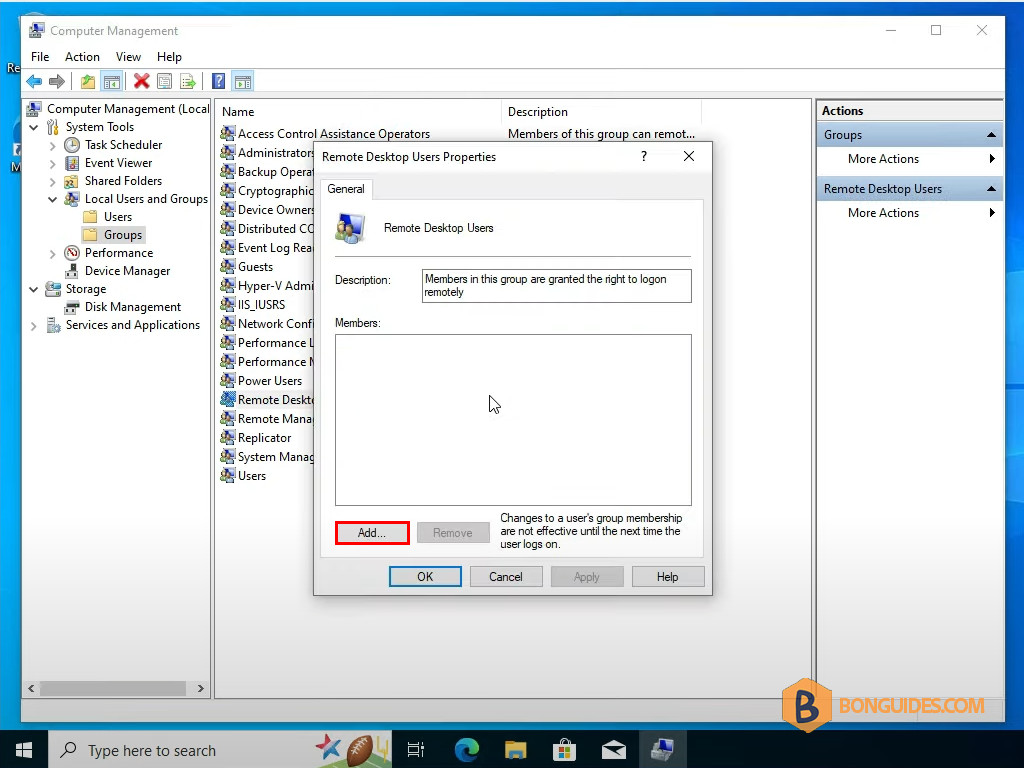
4. Click the Add button to add members to this group.
5. Now, add the users you want to login to this VM. For example, we will add all domain users to be members of this local group.
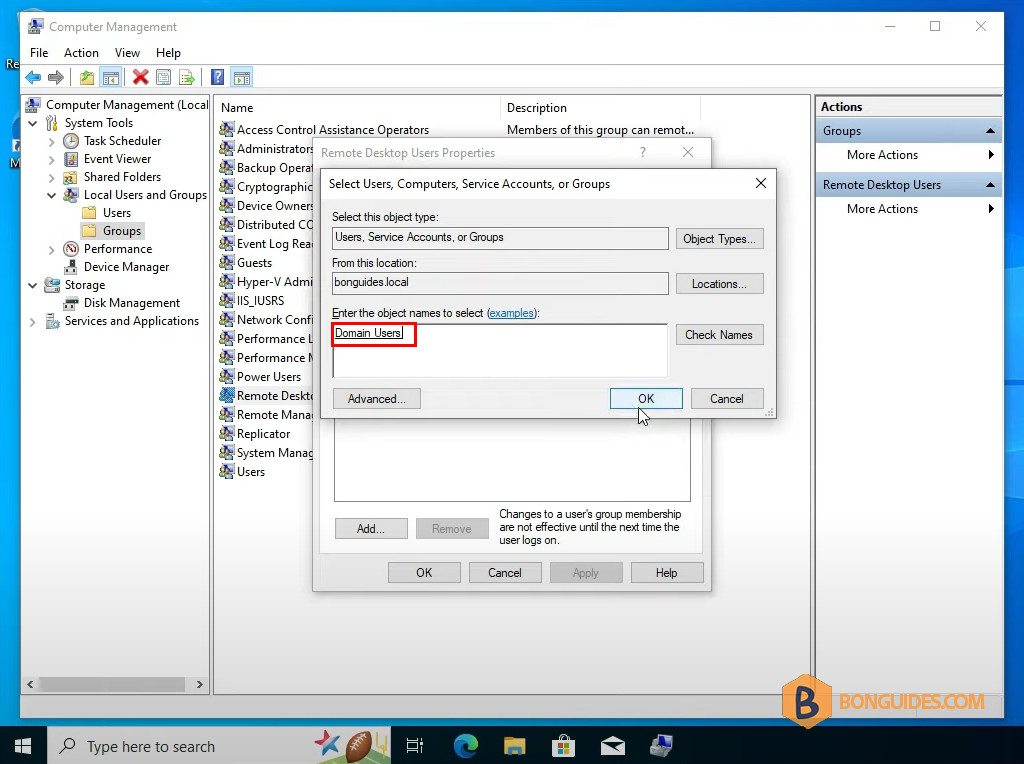
6. Click OK to save the changes.
7. Finally, sign out then sign back in using the domain user in the Enhanced Mode to verify it works.